Loading...
Leads
JD
Caleb B.
Co-Founder & Lead Developer
Overview
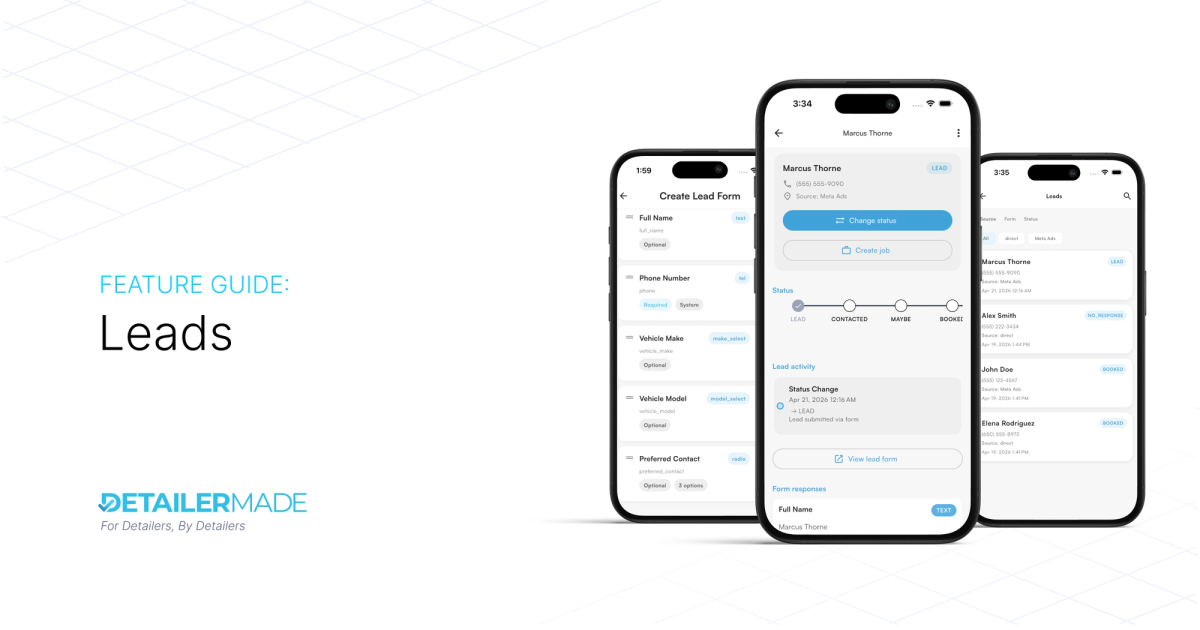
The Leads feature lets you create custom intake forms, share them via a unique link, and manage incoming leads through a simple pipeline — all without leaving the app.
1. Creating a Lead Form

Navigate to Lead Forms and tap Create Lead Form.
Form details:
Name - Internal name for the form (not visible to clients)
Slug - Unique identifier used to distinguish between forms
Description - Optional description of the form's purpose
Active - Toggle to set this form as the active form on your lead link
Note: Only one form can be active at a time. Setting a new form to active will deactivate the previous one.
Adding Fields
Tap Add Field to add a field to your form. For each field you configure:
- Field Type — the input type (see below)
- Slug — a unique identifier for the field
- Placeholder — placeholder text displayed in the input
- Required — whether the field must be filled out to submit
Available Field Types
Text - Single-line text input (e.g., full name)
Phone - Phone number input with formatting
Email - Email address input with validation
Number - Numeric input
Radio - Radio button group for single selection from defined options
Single Select - Dropdown for selecting one option
Multi Select - Dropdown for selecting multiple options
Text Area - Multi-line text input for longer answers
Date Picker - Calendar-based date selection
Vehicle Make Select - Dropdown pre-populated with vehicle makes
Vehicle Model Select - Dropdown that dynamically populates models based on selected make
Once added, fields appear in a list and can be reordered by dragging the handle on the left. Each field shows its name, slug, type badge, required/optional status, and can be edited or deleted.
Note: Phone is included as a required system field by default on all forms. We may change this depending the feedback we receive!
2. Sharing Your Lead Link

Your unique lead link is hosted at lead.detailermade.com. It displays:
- Your business name and logo
- Your star rating and review count
- A "Request a Quote" header with your form description
- All the fields from your currently active form
Share this link anywhere:
- Social media bios and posts
- Meta/Google ad campaigns
- Your website
- Text messages or emails to prospects
When a prospect submits the form, they see a "Thank You" confirmation and the lead immediately appears in your app.
3. Viewing and Managing Leads

Leads List
The Leads page shows all incoming leads with:
- Name and phone number
- Source (e.g., "direct", "Meta Ads")
- Submission date and time
- Current status badge (Lead, Contacted, Maybe, Booked, No Response)
Filtering: Use the tabs at the top to filter by Source, Form, or Status.
Lead Detail
Tap a lead to view their full detail page:
- Contact info — phone number and source
- Change Status — update the lead's position in your pipeline
- Create Job — instantly convert the lead into a job
- Status timeline — visual progress indicator (Lead → Contacted → Maybe → Booked)
- Lead activity — chronological log of all status changes
- Form responses — every field the lead submitted, labeled with its type badge
Lead Statuses
Lead - New submission, not yet acted on
Contacted - You've reached out to this lead
Maybe - Lead is a possibility but not confirmed
Booked - Lead has been converted to a booking
No Response - Lead did not respond
No (expired) - Automatically applied 7 days after being marked as Contacted (configurable)
Auto-Expiration
By default, leads marked as Contacted will automatically move to Expired after 7 days if no further status change occurs. To adjust this:
- Go to Lead Preferences
- Change the expiration period (in days)
- Set to 0 to disable auto-expiration entirely
4. Marketing Attribution
When you use your lead link in ad campaigns, UTM parameters and click IDs are automatically captured and stored on the lead. Visible fields include:
- Source (e.g., Instagram, Google)
- Medium (e.g., paid, organic)
- Campaign (campaign ID)
- Term (ad set / keyword ID)
- Content (ad ID)
- Facebook CLID (Facebook Click ID)
Each value has a copy button for easy reference when analyzing campaign performance.
5. Converting a Lead to a Job
From any lead detail page, tap Create Job to convert the lead into a job. This streamlines your workflow from inquiry to scheduled work.
Coming Soon
- Lead Insights & Analytics — dashboards for conversion rates, lead volume trends, and source performance
- In-App Messaging — send messages to leads directly from the app without switching to your phone's dialer or SMS